Communities

Cultivating community and collaboration are pivotal for user engagement. The "Communities" feature, housed within the Client Portal and the Build Your Product menu in the CRM, plays a crucial role in creating such an environment. Let's dive deep into understanding and making the most out of this feature.

Introduction to Communities

Communities are dynamic spaces within the Client Portal, designed to foster collaboration, discussion, and knowledge-sharing among members. Whether you're seeking answers, looking to share insights, or wanting to connect with like-minded peers, the Communities feature offers the ideal environment.

Accessing Communities

To get started with communities:

Login to the Client Portal: Use your registered credentials. If you're accessing child apps like Communities for the first time, you might need to sign up for the Client Portal. To get started please navigate to Sites > Client Portal. Please view our article on the client portal for more information.

Note: From your Client Portal Dashboard, you can now invite leads to your client portal. Click on Sites - Client Portal Dashboard. Under Actions, you will see the option Invite to Client Portal.

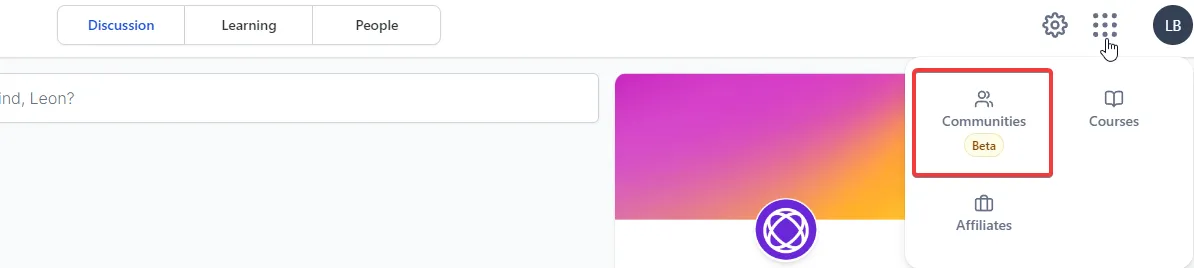
Navigate to Communities: Once inside the Client Portal, you can find Communities listed among other child apps. Use the App switcher (located at the top right corner) for easy navigation.

System Location:

This feature can also be managed by navigating to Build Your Product > Communities.

Here you would Add groups and access community Settings from within the CRM.

Creating Groups and Settings

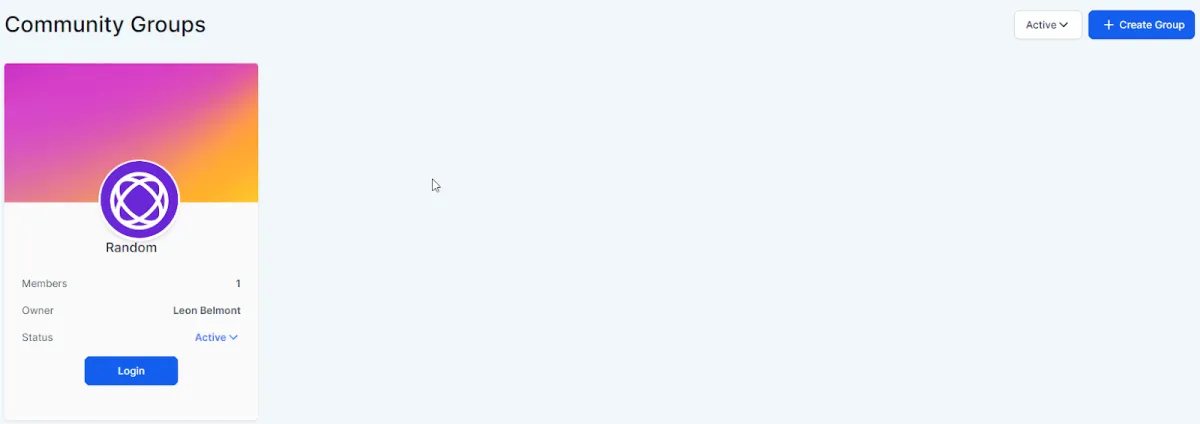
If you don’t have a community yet you can promote collaboration and interaction by utilizing groups within your community. Create your first group as a starting point.

Do so by clicking on the Create Group button.

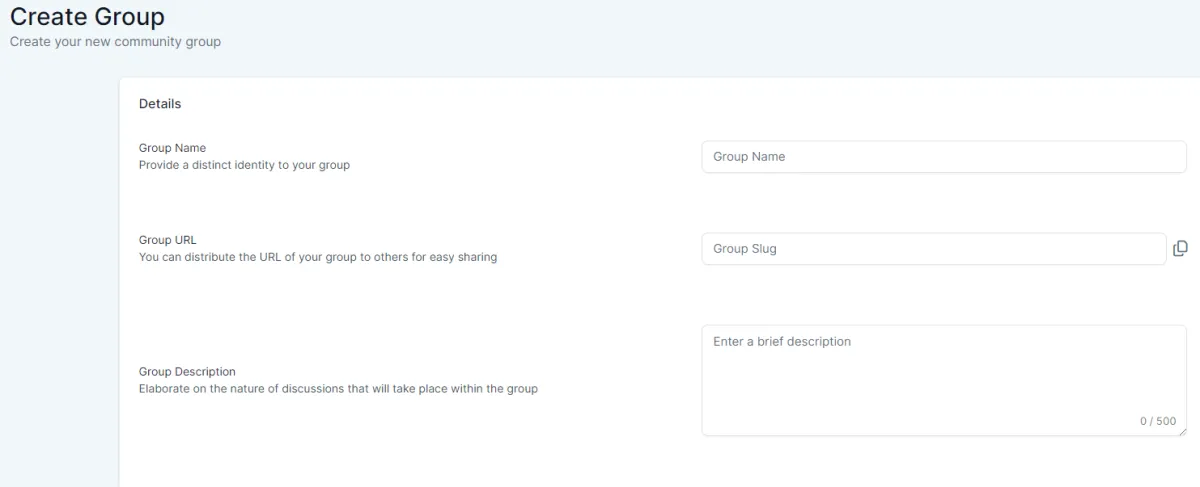
This takes you to a create group page where you can create your new community group.

Here you can choose:

Group name

URL

Description

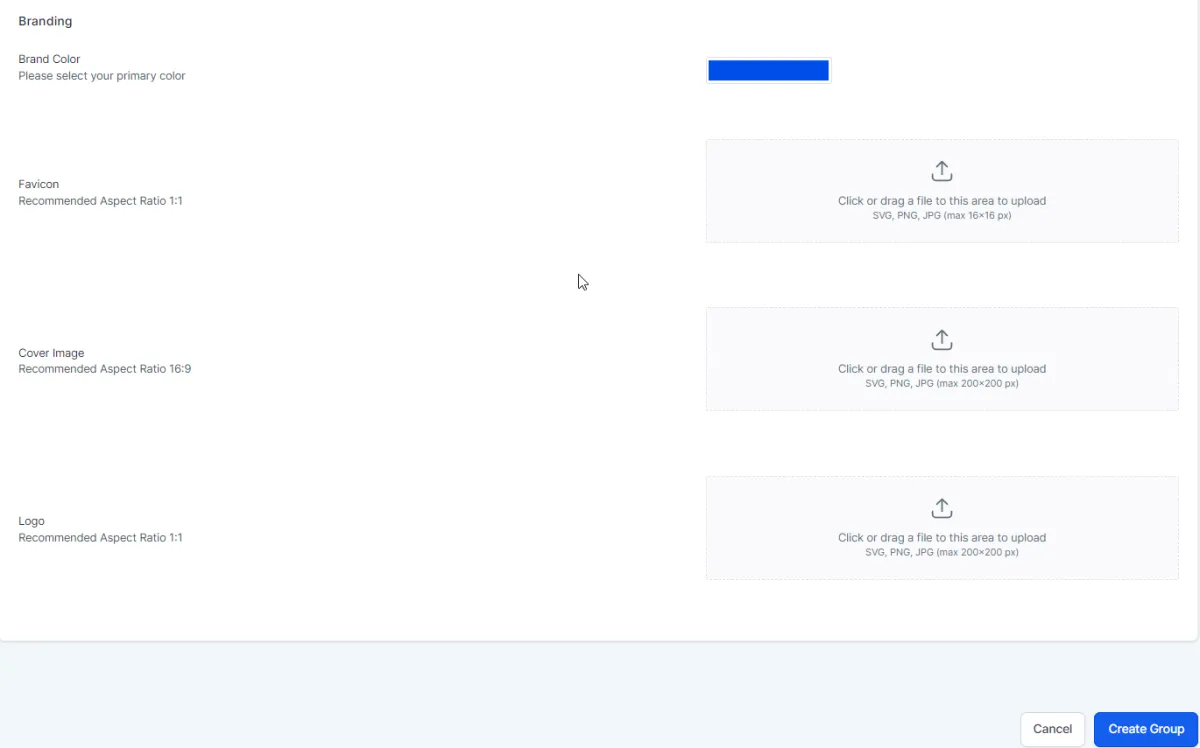
You are also able to utilize branding:

Brand color

Favicon

Cover image

Logo

After creating a group it takes you to a preview that looks similar to how it will appear in the client portal.

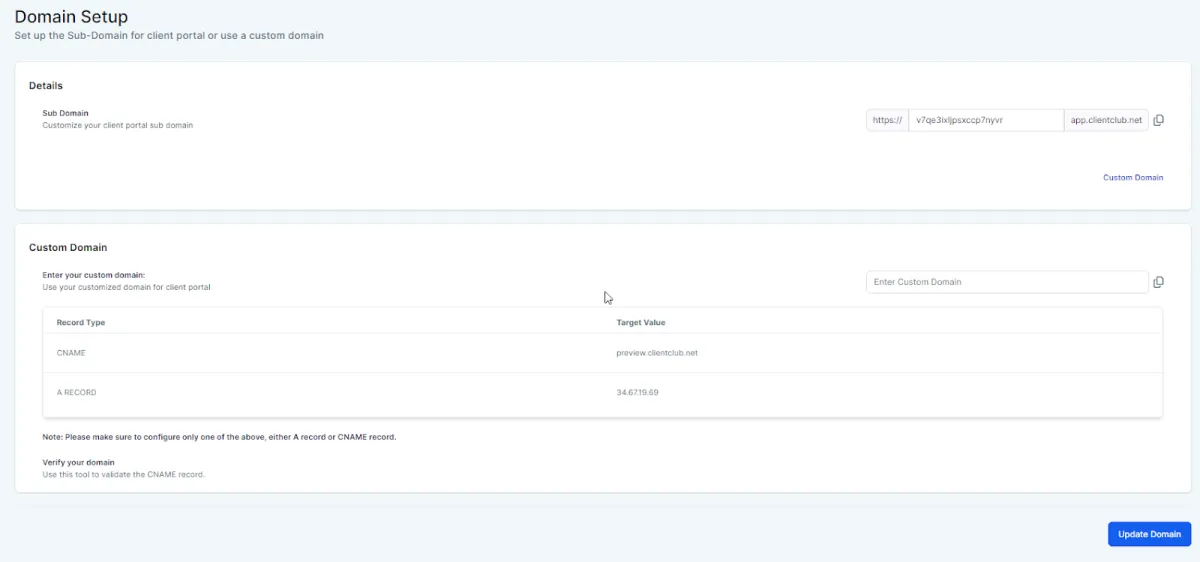
If you choose to go to Settings from the CRM you will see the options to setup your Client portal domain. Choose from a default setup or custom domain and click on the Update button.

Paid Groups

Paid Groups, introduces the capability to monetize both Public and Private communities on the platform. Admins and owners can now charge their users to access the content and features of the community group.

Go to your portal settings

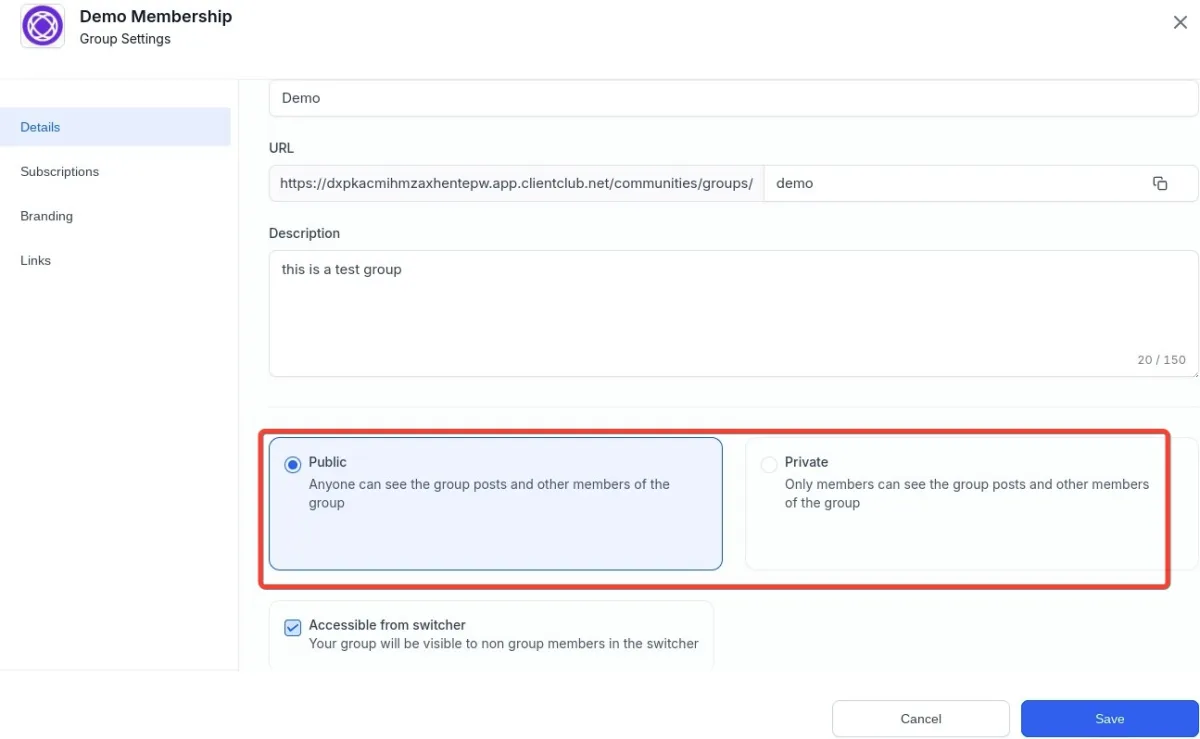
From the settings button, admins and owners can choose whether they want to set up their group as Public / Private.

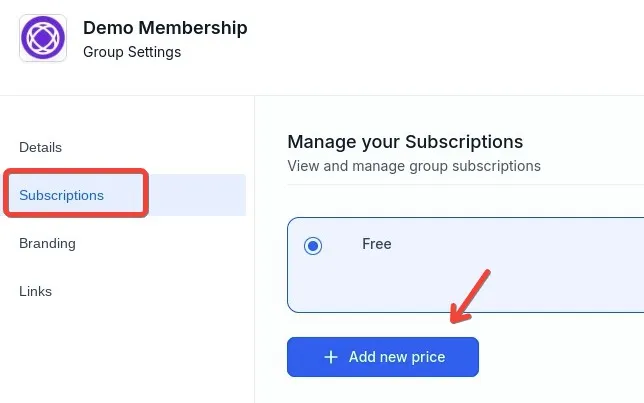
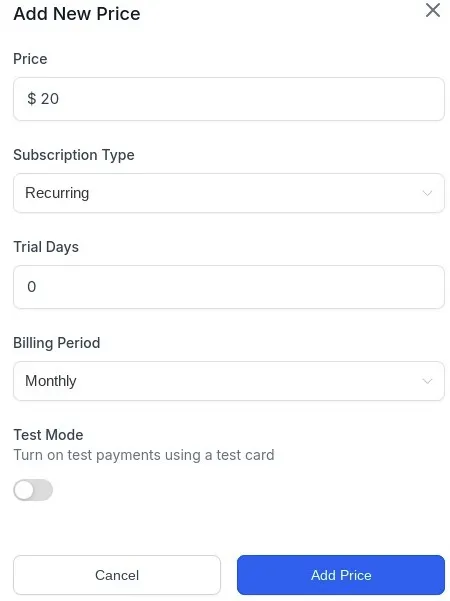
To add a price to your group, go to Settings, then Subscriptions, then, Add New Price

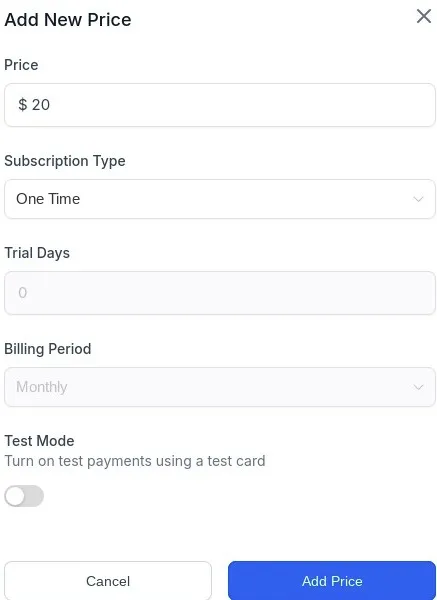
Here, you can set up a one-time payment for your group. The one-time payment type will give members unlimited access to the group after the payment and once they have group access.

Go to Settings > Subscriptions

Click on "Add new price": Specify the Amount, Type it as a one-time

Click "Add" and then "Save" to create the paid group with One-time Payment

Additionally, to test a payment, turn on the Test Mode

Once saved, the group description will reflect the same information to members who want to join

You can also add a recurring payment. The recurring subscription type will give members limited access to the group after the payment and once they have group access. To set up the recurring subscription, follow the below steps:

Go to Settings > Subscriptions

Click on "Add new price": Specify the Amount, Type as Recurring, Trial Days (if any), Billing Period as Monthly or Annually

Click "Add" and then "Save" to create the paid group with Recurring Subscription

Additionally, to test a payment, turn on the Test Mode

Once saved, the group description will reflect the same information to members who want to join

Group Access:

To grant access after receiving the payment:

Once the payment is made, admins and owners need to follow the same process of providing access to members for Private Groups (Go to People Tab > Click on the Filter > Requested > Accept or Deny Membership).

For Public Groups, once the payment is made the user signs up and becomes a member right after.

Notes:

All admins and owners receive email notifications about the payment made by a user with all the details, to join the group and subsequently request membership (as per group type).

Similarly, the users also receive a payment confirmation with all the details about their payment.

Once their membership is approved by the admin or owner. They are further notified about their membership and access to the group.

Courses:

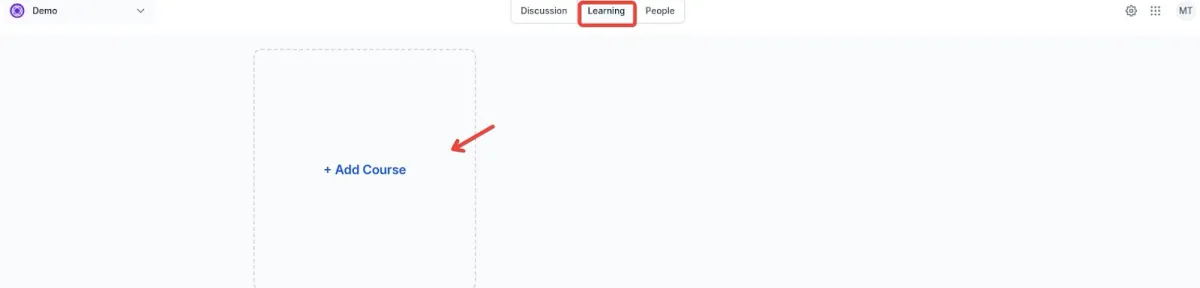
You can add a course to inside a community too.

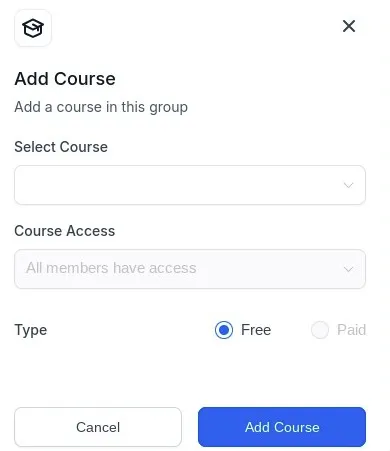
Inside your community, click on the Learning tab, then on Add Course.

Select the course and add it.

Contact Us

Need help with your Amply360 account?

Join our Community!

Connect with thousands of Amply360 users just like you!