
Websites
Build and monetize your online presence with a fully integrated website - from digital products to e-commerce sales.


Move your audience off social media and own your relationship with them

Use the right metrics, organized into reports you’ll actually use.

Automatically collect, respond to, and analyze customer feedback from email, SMS, Google My Business, and Facebook.

Automate Instagram and Facebook DMs to capture leads, deliver offers, and drive sales — even while you sleep.

Build dynamic landing pages without needing a designer

Create marketing emails worth opening

Automate and scale with Amply360’s proven, ready-made Funnels
Create and manage Workflows to automate business processes, improve efficiency, and increase conversions.

Plan, schedule, and publish content across platforms, so you stay consistent without the chaos.

Engage leads 24/7 with intelligent chatbots that qualify, nurture, and convert — automatically.
Quickly find the right help for where you’re at

Curated expert insights and process to grow your business
Refer a friend and earn lifetime commissions for each activated referral

Official Facebook Group to connect with fellow AMPLY Aces, ask for help and get feedback
Integrating Shopify with Amply360 is a 2 step process:
1. Create a Custom App in your Shopify Store
2. Connect Shopify to your Account
Before we setup integration we need to create a custom app in your Shopify store.
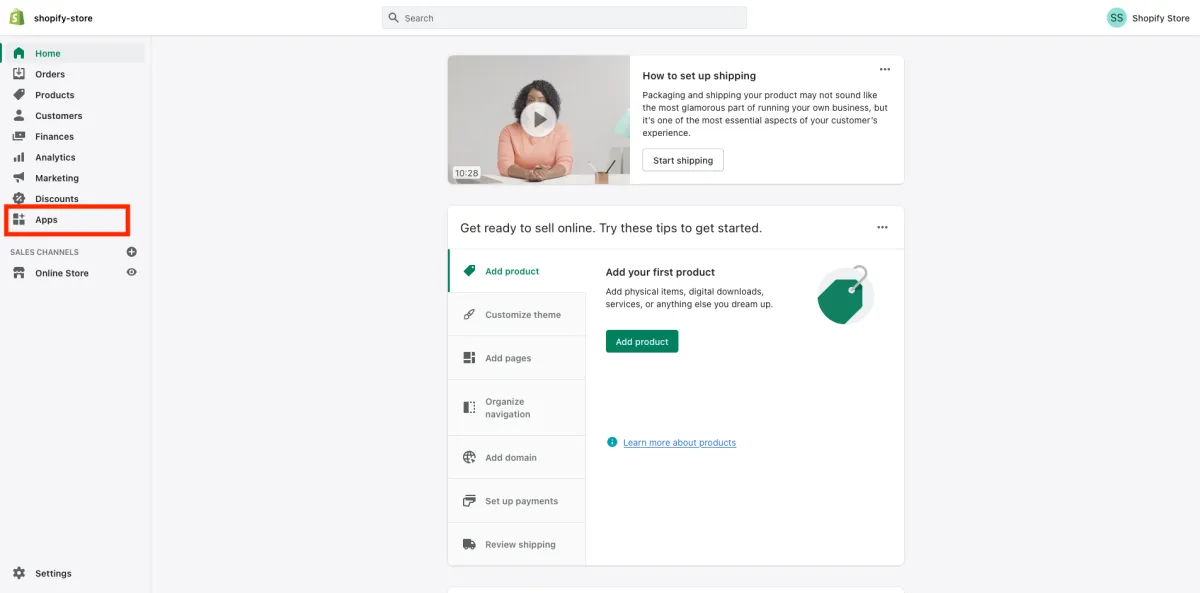
1.1 Login to your Shopify store and click on "Apps" in your dashboard
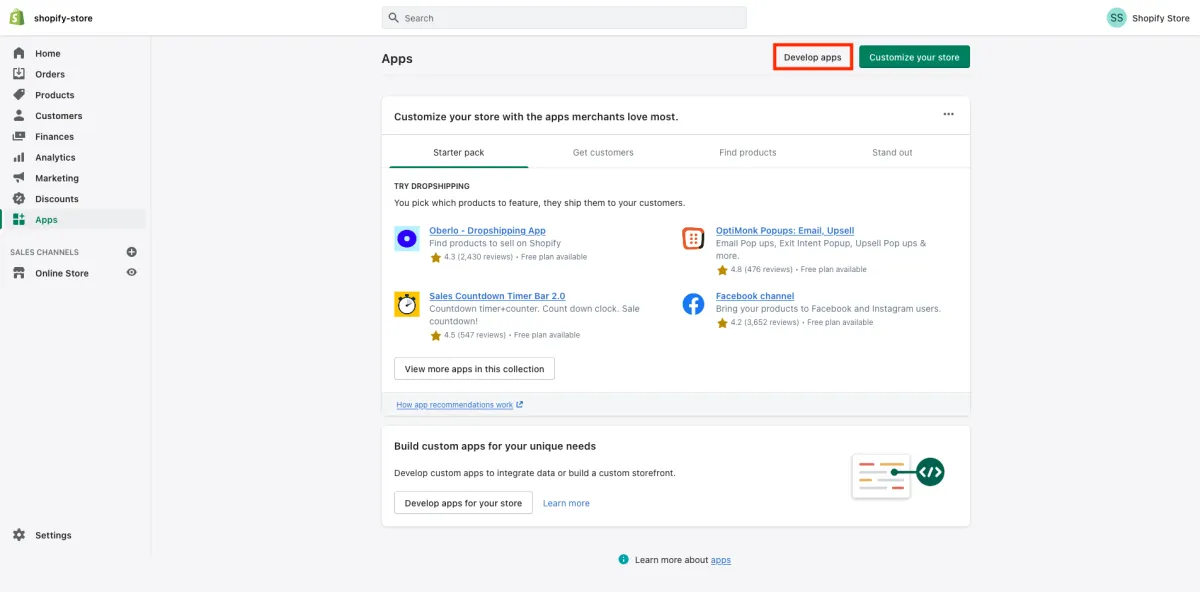
1.2 Then, click on "Develop apps" on the top of the screen highlighted in the below picture
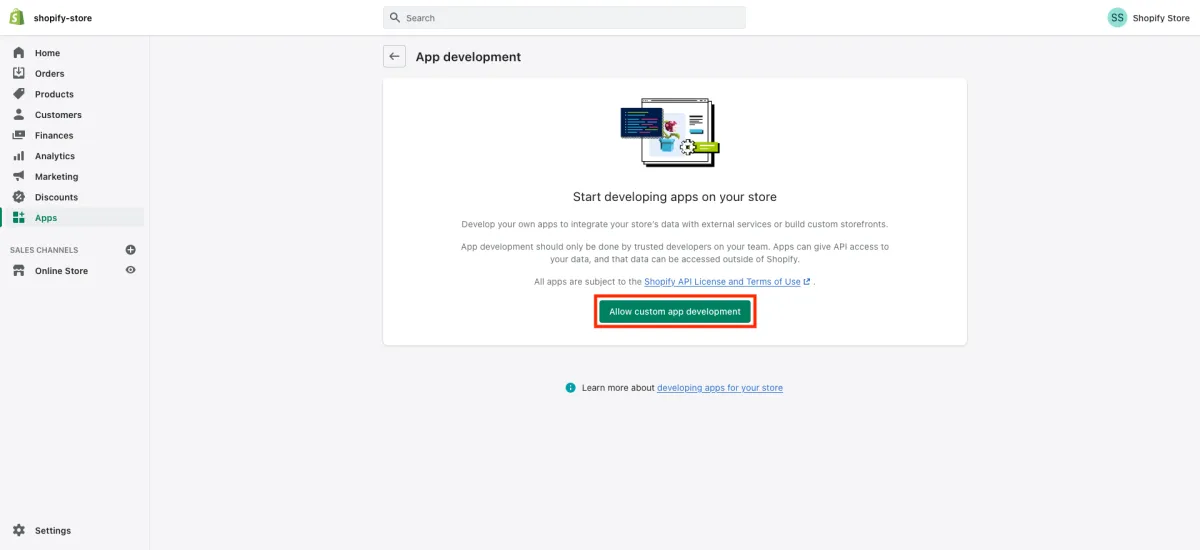
1.3 Then, click on "Allow custom app development" (if you have already enabled this permission then Shopify will take you to Step-1.5)
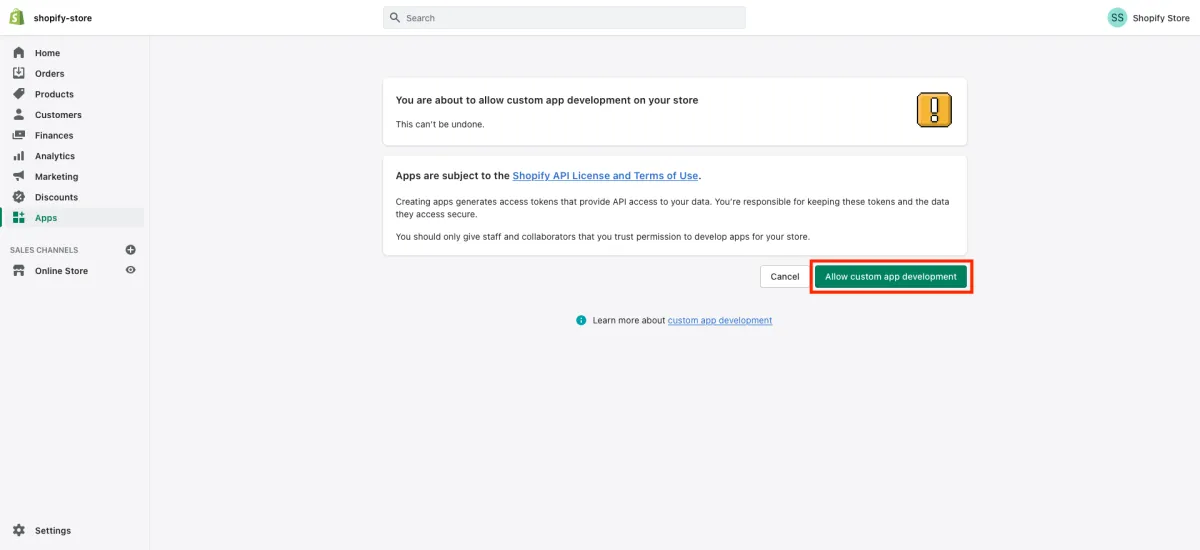
1.4 In the next screen, click on "Allow custom app development"
1.5 Then, click on "Create an app"
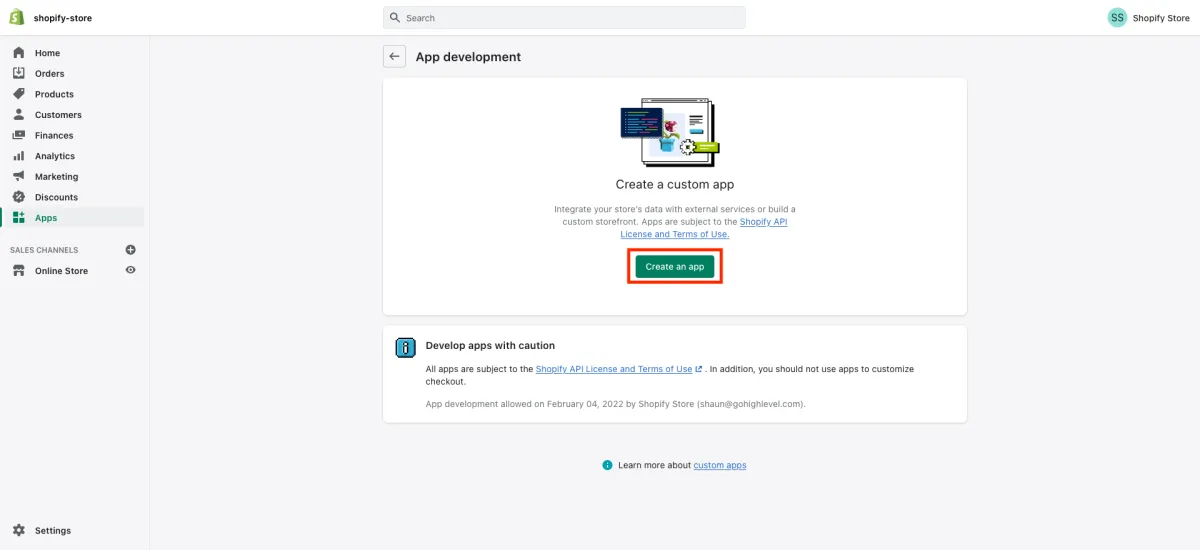
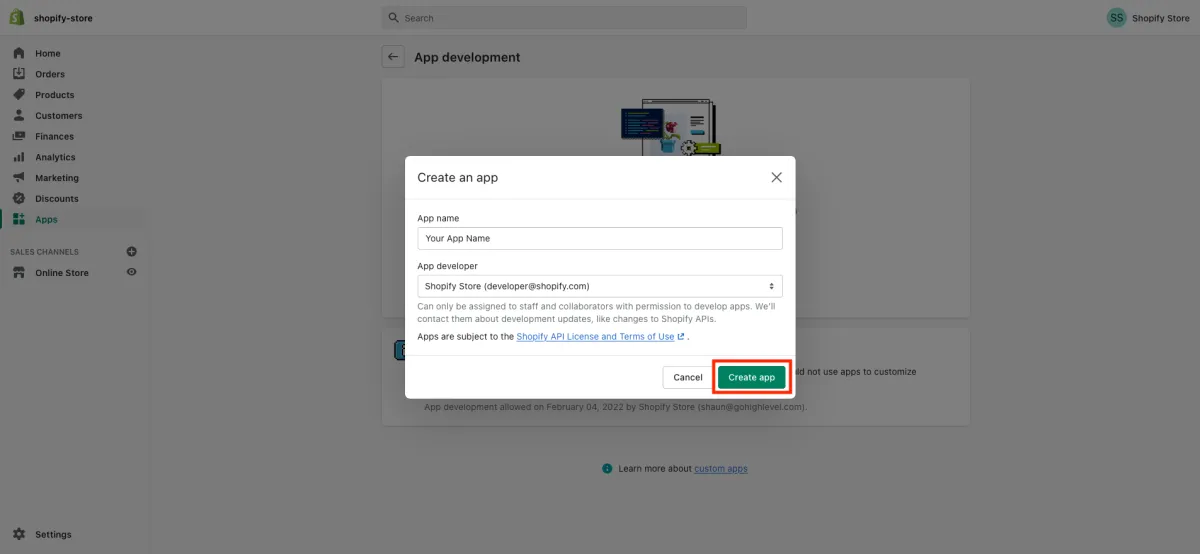
1.6 Enter a name for the app (for example "Marvel's App"), select your email under App developer and click on "Create app"
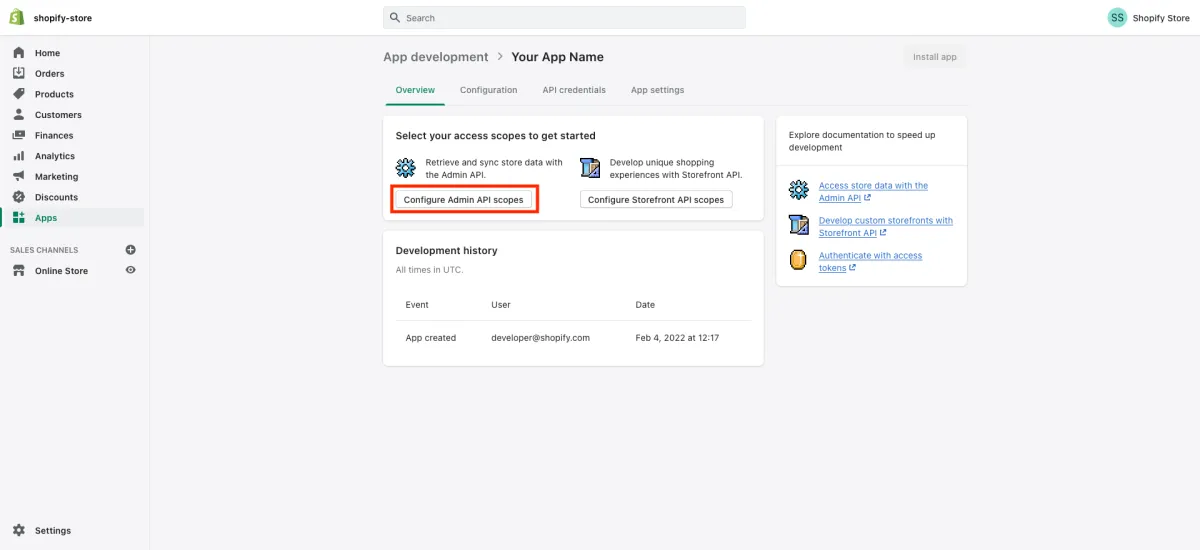
1.7 Then, click on "Configure Admin API scopes" to configure Admin API integration
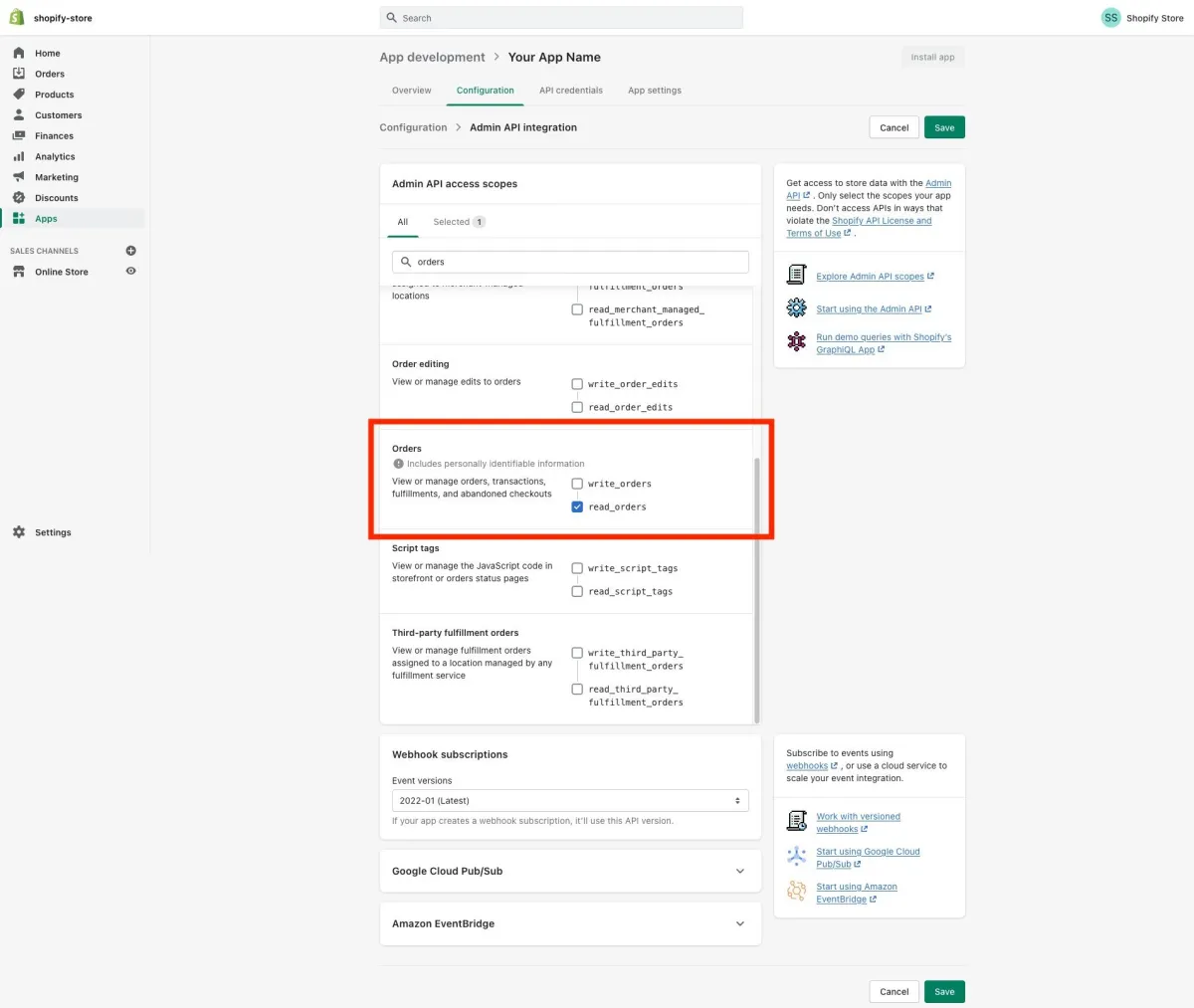
1.8 Search/scroll down to the "Orders" and You will need to enable at the very least "read_orders" access
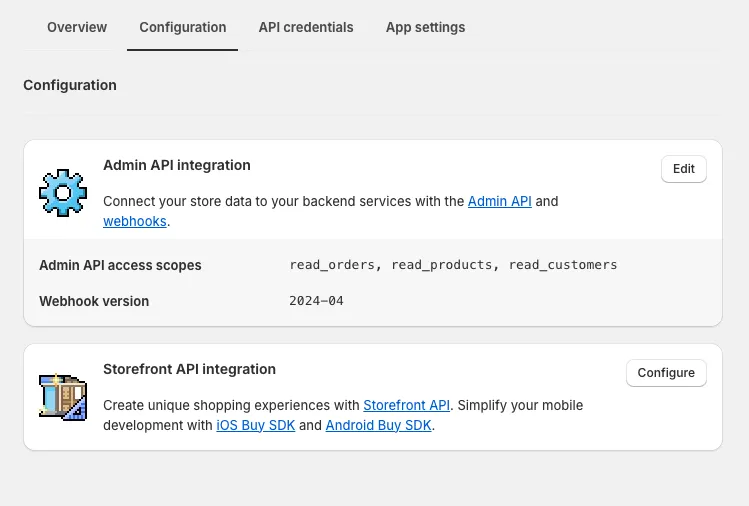
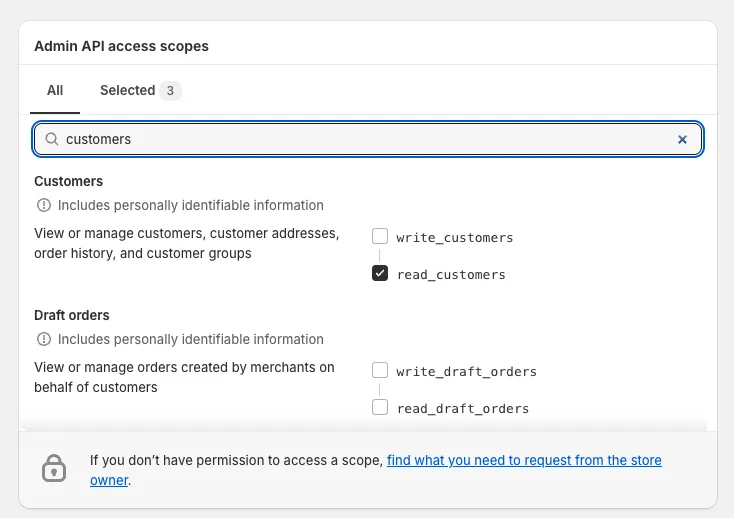
1.9 Add the "read_customers" scope. In configuration edit the "Admin API Integrations". In this section undercustomers, select the "read_customers" tick box.
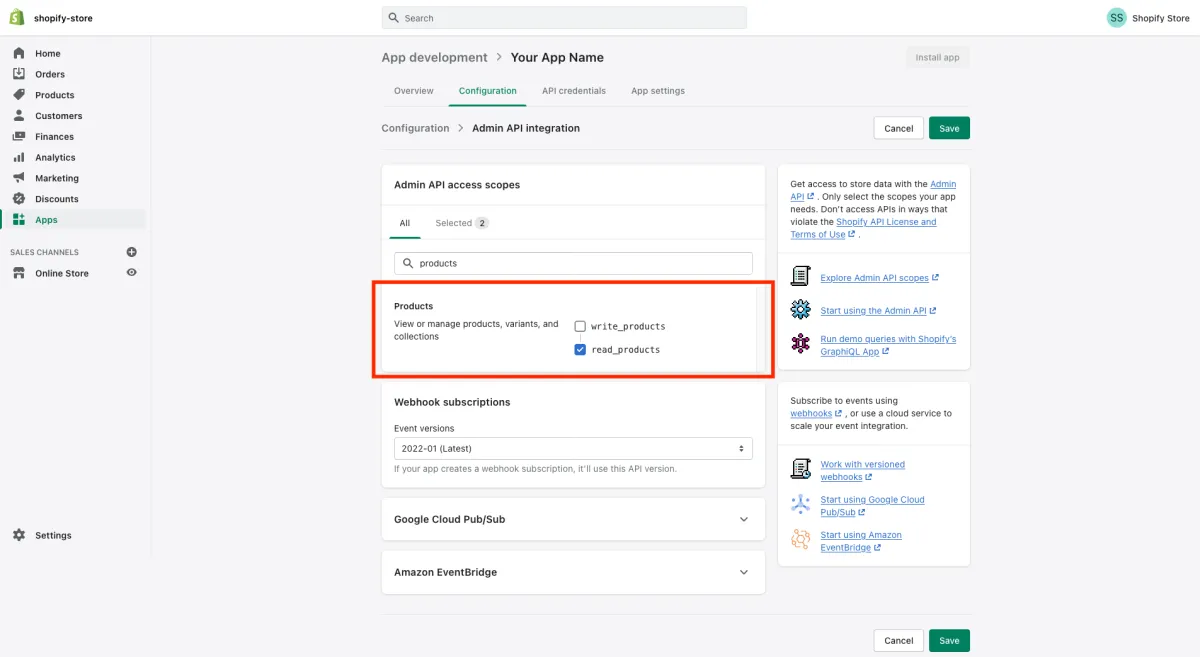
1.10 Then, Search/scroll down to the "Products" and You will need to enable at the very least "read_products" access
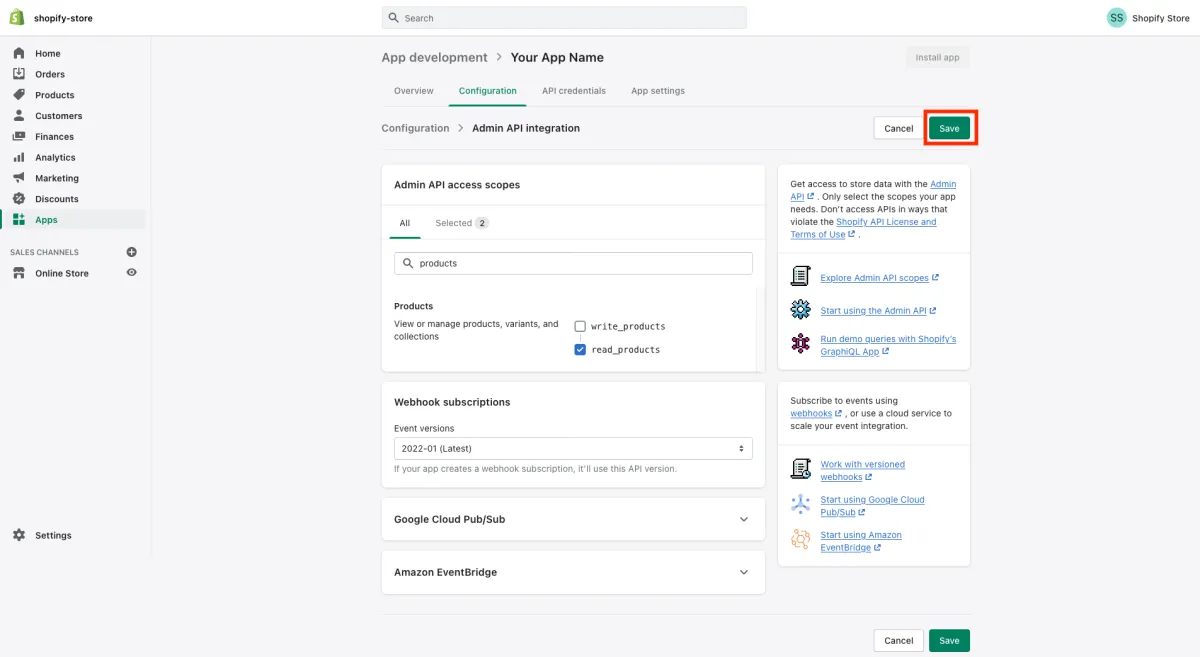
1.11 Once you've enabled read access on "Orders and Product", save the app by clicking on the "Save" button on the top right
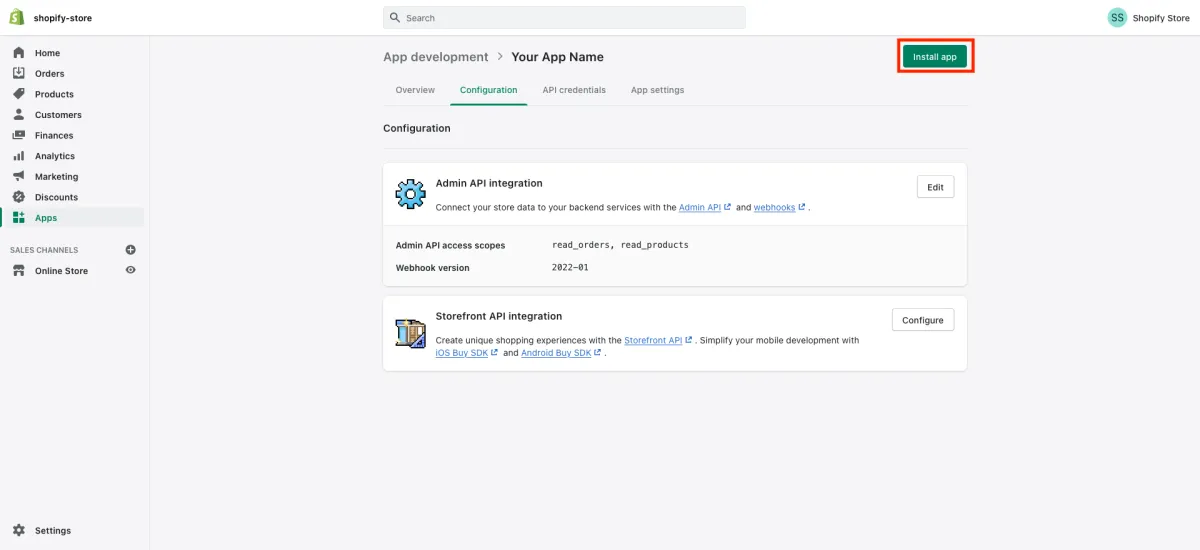
1.12 After saving click on the "Install app" as in the image below.
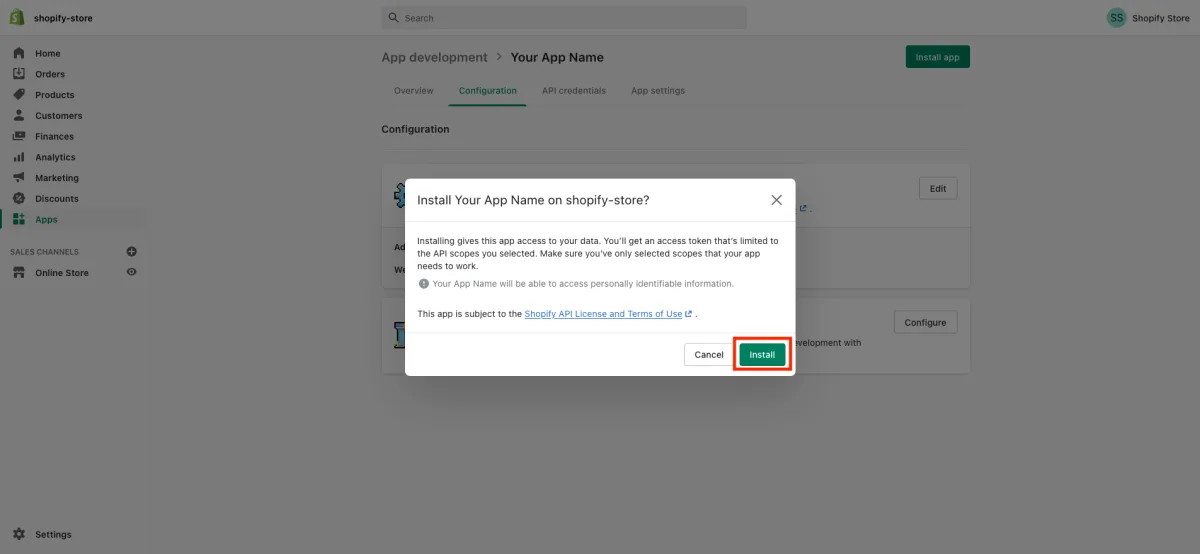
1.13 Then, click on "Install" from the pop up as in the image below
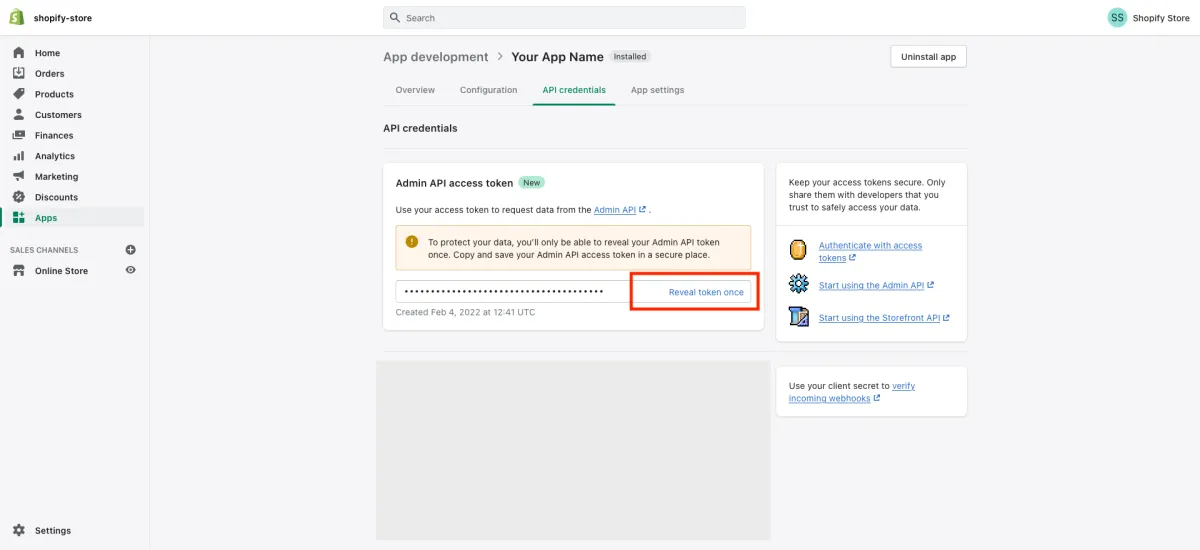
1.14 After installing, the "Admin API access token" that you need for the Shopify integration can be found under the API credentials section, click on "Reveal token once" to get access to the token.
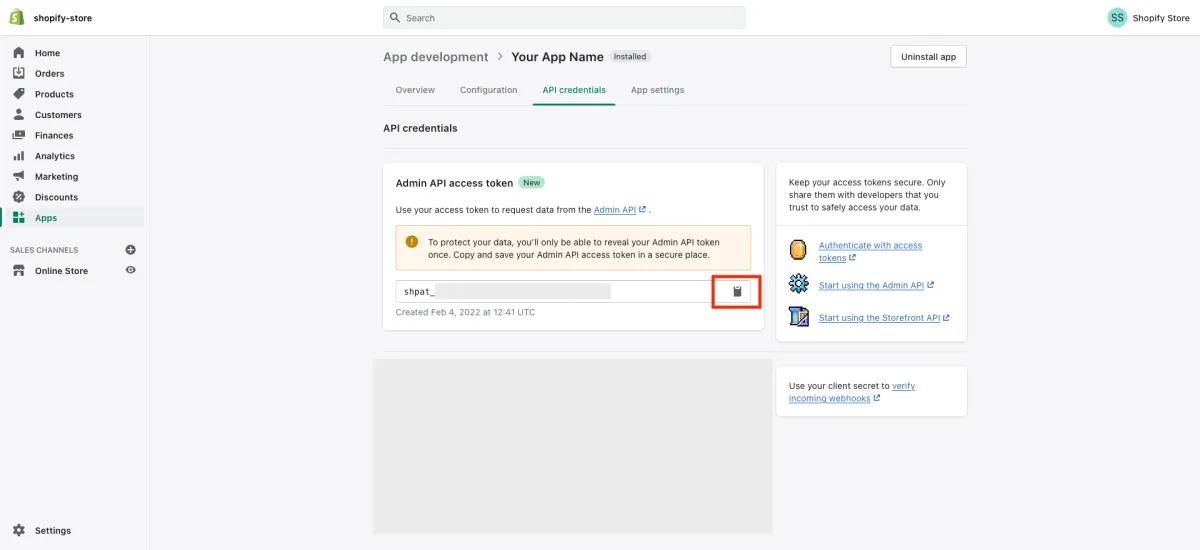
1.15 Copy the "Admin API access token" by clicking on the clipboard icon
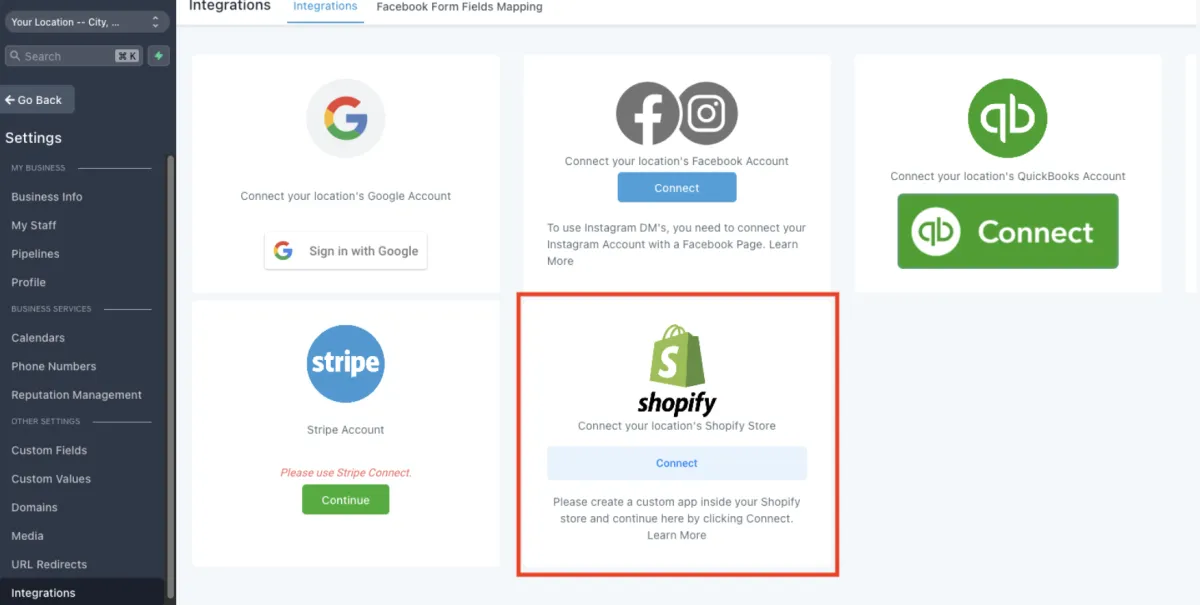
2.1 In your Account go to Settings > Integrations and click on "Connect" under Shopify.
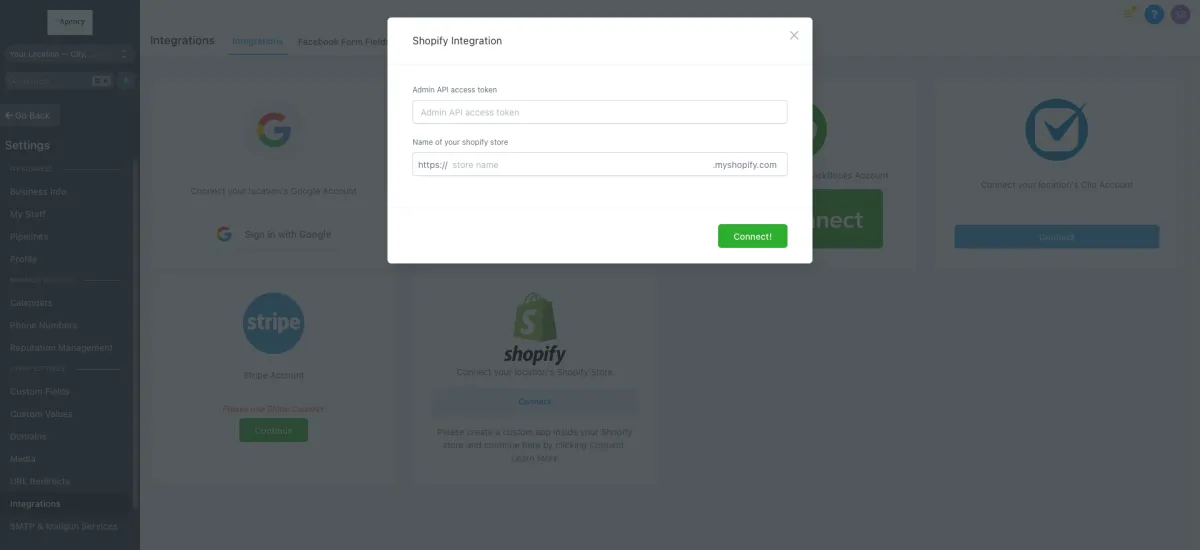
2.2 Paste the "Admin API access token" you copied in Step-1.14, enter "Name of your Shopify store" and click "Connect".
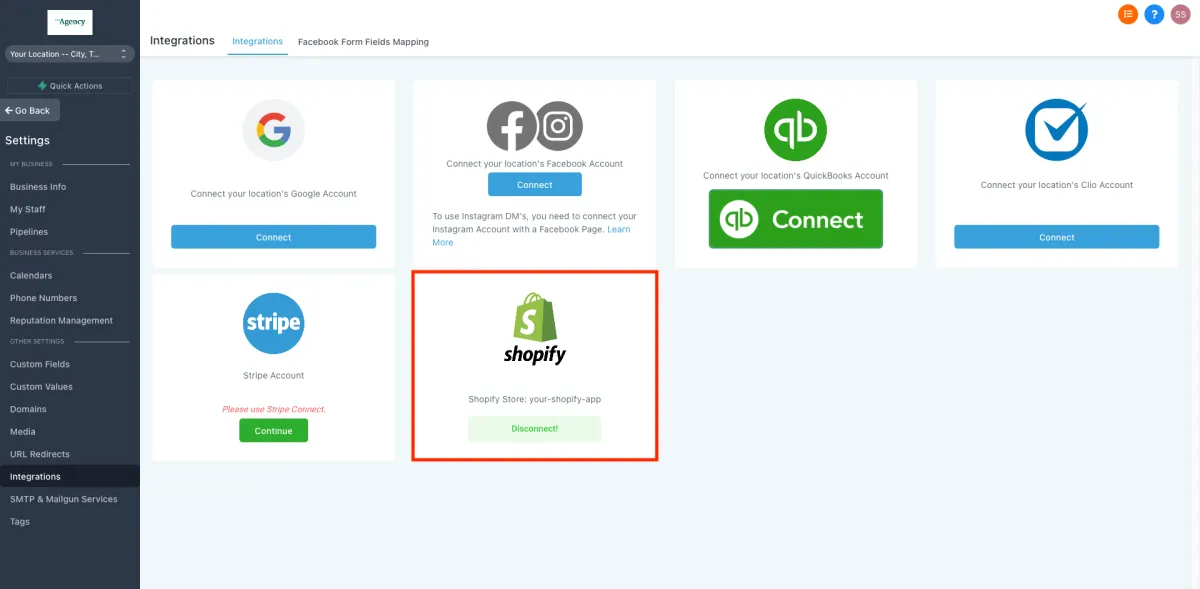
2.3 Your Shopify integration is done!

Resources
Aces Stories
Free Courses & Guides
Resource Hub
Support


